Open topic with navigation (left menu)
The plagiarism control functions best when comparing text-based documents. This means that plagiarism control is less relevant for texts on, for example, natural sciences. Texts on natural sciences often include short formulas and a great deal of numbers. The same applies to vocabulary texts or similar glossary texts. Such assignments are more difficult for the plagiarism control to recognize, since it is better at identifying longer pieces of text. Keep in mind that every document that is submitted using plagiarism control is stored in the plagiarism control database. If a great number of irrelevant documents are sent to the plagiarism control, they will clog up the system and make it less efficient.
Teachers should ask themselves the following question before using plagiarism control: "Is it likely that the answer to the assignment is available on the Internet?" If not, avoid using it. If you discover a new site or paper mill, notify itslearning so that the site can be registered and included in the plagiarism control service as part of the scanning process.
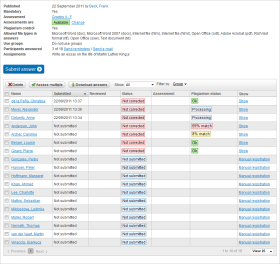
Once learners start submitting their assignments, the teacher can see the current status of the plagiarism control in the assignment overview at all times. The status of the plagiarism control is located under the header Plagiarism status. Learners cannot see their own plagiarism status.
The Plagiarism status column displays a number of different status messages showing the current status of the plagiarism scan on a given assignment.
| Status | Explanation |
|---|---|
| In progress | The text is currently being checked by the service. |
| OK | No sign of plagiarism was found (0% to 5% match). |
| Match | The assignment is possibly plagiarized (5% to 30% match). |
| Match | Signs of plagiarism are discovered (30% to 100% match). |
| Error | An error occurred when sending the file to the plagiarism service. |
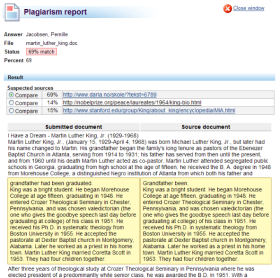
To control discovered plagiarism, click Show next to the plagiarism status message. This opens the overview where assignments are corrected. Here a highlighted text is displayed, for example: "Completed, 69% match". This means that the plagiarism control has found a 69% match with one or more texts. Click View report to see a detailed comparison between the submitted assignment and one or more of the texts that matched.
On the left side of the screen you see the learner’s document. The right side shows the source material that matches the learner’s assignment. You can easily compare the texts and decide whether you think the learner has cheated. The matching paragraphs are shown highlighted next to each other for easier comparison.
If several documents match the learner’s assignment, you can compare them one by one. Choose the relevant text by checking the radio button next to Compare under Suspected sources. Note that a link to the source document that has been copied is located next to the button.
Note: If the system finds matches within the customer’s own database, it does not show a link to the source document or provide other information that can identify the original author.